 |
* Questions are answered in 1-2 business days. * Questions may be published (We do not post email addresses) * Spammers will be blocked |
Sonic-connect USB Message Alert
Home > Aids to Daily Living > Hearing Aids > Sonic-connect USB Message Alert
|
| ||||||
Sku: 13200
| (No Reviews) Write a Review |

| Shipping Weight: | 1 lb |
Description
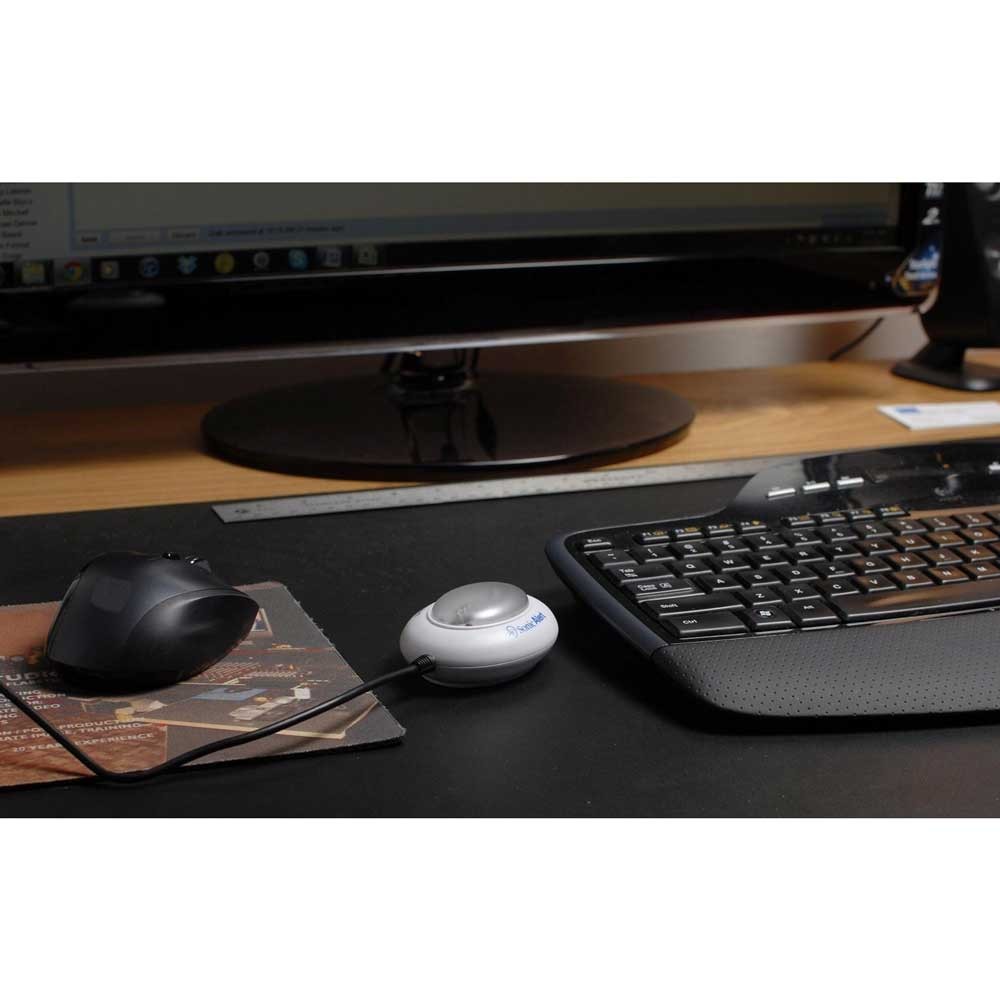
With the simple plug and play setup, the Sonic-connect will keep you in touch to popular Instant Messaging Services and MS Outlook calendar and task reminders with a bright flashing strobe and bright red LED message waiting lights. Need to step away from your computer, run an errand, or maybe put the baby down for a nap? No problem! Bright red LED lights indicate when you have a new message waiting.
As we progress with new mediums like e-mail, video phone calls, etc. your Sonic-connect will be easily upgraded at no cost by simply downloading the new updates when available.
As we progress with new mediums like e-mail, video phone calls, etc. your Sonic-connect will be easily upgraded at no cost by simply downloading the new updates when available.
Features
- Alerts to IM messages via Skype, Facebook, Yahoo, Google, MSN, AIM and more.
- Alerts to MS Outlook Calendar and Task reminders.
- Extra BRITE strobe flasher, with red LED light for missed messages.
- Plug-n-play portable device for home or travel.
- Uses standard computer USB connection.
- Free updates as new programs become available.
- Works with Windows PC running Windows XP or higher; not compatible with Apple products.
Instructions
Getting started:
1. Plug the SEC100 into a working USB port on your computer (Windows XP or higher)
2. Install driver program by running the file called, sec100setup.exe file, and then follow the directions in the Setup Wizard.
3. Click Next when ready.4. Next you'll see the "Select Installation Folder" screen. It is best to install the program in the default folder. To accept the default folder, click Next.
5. Confirm Installation window will be displayed. Press Next.
6. The program will be installed. When the installation is complete, the install complete window will be displayed.
7. Click Close.
8. The user manual has now been installed on your desktop in a file called: Sonic-connect™.
1. Plug the SEC100 into a working USB port on your computer (Windows XP or higher)
2. Install driver program by running the file called, sec100setup.exe file, and then follow the directions in the Setup Wizard.
3. Click Next when ready.4. Next you'll see the "Select Installation Folder" screen. It is best to install the program in the default folder. To accept the default folder, click Next.
5. Confirm Installation window will be displayed. Press Next.
6. The program will be installed. When the installation is complete, the install complete window will be displayed.
7. Click Close.
8. The user manual has now been installed on your desktop in a file called: Sonic-connect™.
Customers Who Bought This Item Also Bought

 |
 |
|
There are no product questions at this time. |
Buyer ReviewsWrite a Review There are no buyer reviews at this time. Be the first to review this item! |

Trending Products